 |
SpectraLayers
6.0
|
|
|
SpectraLayers
6.0
|
|
You can use the tools in the Tools toolbar to select data in the spectral display. For more information, see Selection Tools
 , to switch to the Select tool, or click and hold to choose a selection mode. : Click and drag to create a rectangular selection. All data in the rectangle is selected.
 : Click and drag to create an elliptical selection. All data in the ellipse is selected.
 : Click and drag to create a selection that includes the full frequency range within a time selection.
Frequency Range Selection  : Click and drag to create a selection that includes the full time range within a frequency selection.
 : in this mode, new selections clear existing selections.
 : in this mode, selections are persisted even when you switch selection tools. Add to Selection mode is the fastest way to build complex selections using multiple selection tools.
 : in this mode, areas you click are removed from the current selection.
 : in this mode, areas you click are intersected with the current selection.
Hardness: sets the hardness of the selection edge. 0% creates a soft, feathered edge that helps you create blended sounds, and 100% creates a precise selection with sharp edges — perfect for creating precise selections of narrow frequency bands.
 to create a time selection. Please note that selecting with the Time Cursor selects from the global mix rather than only the selected layer.
 to switch to the Lasso tool, or click and hold to choose Lasso Selection or Polygonal Lasso
  mode. : Click and drag to draw a free-form lasso around the data you want to select.
Polygonal Lasso Selection : Click and drag to draw a straight-line-segment lasso around the data you want to select. Double-click to close the selection path.
: in this mode, new selections clear existing selections. : in this mode, selections are persisted even when you switch selection tools. Add to Selection mode is the fastest way to build complex selections using multiple selection tools. : in this mode, areas you click are removed from the current selection. : in this mode, areas you click are intersected with the current selection.Fade: sets the fade (either in time or frequency) of the selection edge.
 to paint a selection in the spectral display. : in this mode, new selections clear existing selections. : in this mode, selections are persisted even when you switch selection tools. Add to Selection mode is the fastest way to build complex selections using multiple selection tools. : in this mode, areas you click are removed from the current selection. : in this mode, areas you click are intersected with the current selection.
Pen Pressure: select the Pen Pressure button  to use pen pressure to multiply the Hardness value when drawing frequencies on a tablet.
 to paint a selection in the spectral display by intelligently selecting shapes. : in this mode, new selections clear existing selections. : in this mode, selections are persisted even when you switch selection tools. Add to Selection mode is the fastest way to build complex selections using multiple selection tools. : in this mode, areas you click are removed from the current selection. : in this mode, areas you click are intersected with the current selection.
Maximum Width: sets the maximum width (in seconds) of the selection.
 to select a frequency band in the spectral display. : in this mode, new selections clear existing selections. : in this mode, selections are persisted even when you switch selection tools. Add to Selection mode is the fastest way to build complex selections using multiple selection tools. : in this mode, areas you click are removed from the current selection. : in this mode, areas you click are intersected with the current selection.
Thickness: sets the number of bins (spectral samples) around the peak frequency that will be selected. Low settings work well for selecting clearly defined frequency bands such as hum. Higher settings expand the selection, incorporating more deviations from the baseline frequency.
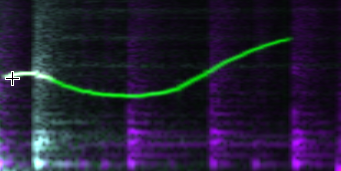
 to select harmonics (a full set of frequencies, with frequency tracking) in the spectral display. : in this mode, new selections clear existing selections. : in this mode, selections are persisted even when you switch selection tools. Add to Selection mode is the fastest way to build complex selections using multiple selection tools. : in this mode, areas you click are removed from the current selection. : in this mode, areas you click are intersected with the current selection.
Master Rank: set this control to the order of the harmonic that you will hover over when making selections.
The tool will seek up to the number of harmonic overtones shown in the Count value. Set the Master Rank to a higher number if you need to highlight a higher harmonic during the selection process.
For example, imagine you’re attempting to isolate a sound in which the fundamental and first three higher harmonics are obscured by other sounds in the program, but you have a clear view of the fourth harmonic. Set the Master Rank control to 4 and hover over the fourth harmonic. The Harmonic Selection Tool will seek down while simultaneously seeking upward to the limit defined by the Count setting.
Count: sets the number of harmonics to be targeted for selection.
Choose Select > Select All to clear the current selection.
Double-click a region marker to select the time between the region markers.
For more information, see Editing markers and regions
Choose Select > Deselect to clear the current selection.
Choose Select > Invert Selection to deselect all selected data and select unselected data.
After creating a selection, you can use the Move tool  to move your selection.
For more information, see Standard
After creating a selection, you can use the Scale tool  to scale your selection.